
Managing cookies might sound technical, but it’s actually something that can make your browsing experience much smoother and more controlled. Whether you’re using Windows, Mac, or Linux, having access to your browser cookies allows you to fix login issues, test websites, and improve your privacy. In this guide, we’ll walk you through how to use the Cookie-Editor extension across different operating systems. Don’t worry—you don’t need to be a tech expert. Just follow along, and you’ll be able to manage cookies like a pro.
What is Browser Cookies?
Browser cookies are small pieces of data that websites store on your device when you visit them. These cookies help websites remember important information about you, such as your login status, preferences, and browsing activity.
For example, when you log in to a website and don’t have to enter your password again every time, that’s because cookies are storing your session. They also help websites load faster and provide a more personalized experience.
However, cookies can also store tracking data, which is why managing them properly is important for both performance and privacy.
What is Cookies Editor Extension?
The Cookie-Editor is a simple yet powerful browser extension that gives you full control over website cookies. Instead of relying on built-in browser settings, this tool lets you directly view, edit, delete, import, and export cookies in just a few clicks.
It’s widely used by developers and advanced users for testing websites, debugging login issues, and managing session data. At the same time, even regular users can benefit from it by clearing problematic cookies or understanding what data a website stores.
With this Cookies Editor we will use it for getting premium access of different account like Prime Video, Netflix, Spotfiy, Chatgpt, Grok etc.
How to Install Cookies Editor on Browser.
Installing the Cookie-Editor on Windows, Mac, or Linux is very simple, and it works on most popular browsers like Google Chrome, Mozilla Firefox, Brave, Opera, and even Safari.
You don’t need any technical knowledge—just follow these easy steps:
- Open your preferred browser
- Go to the official extension store (like Chrome Web Store or Firefox Add-ons)
- In the search bar, type “Cookies Editor”
- Find the extension and click on “Add to Browser” or “Install”
- Within a few seconds, the extension will be installed and ready to use
That’s it! Once installed, you’ll see the Cookies Editor icon in your browser toolbar, and you can start managing cookies anytime with just one click.
How to Active Cookies Editor on Browser?
After installing the Cookie-Editor, you’ll need to enable its permissions so it works properly on all websites. Here’s how to do it:
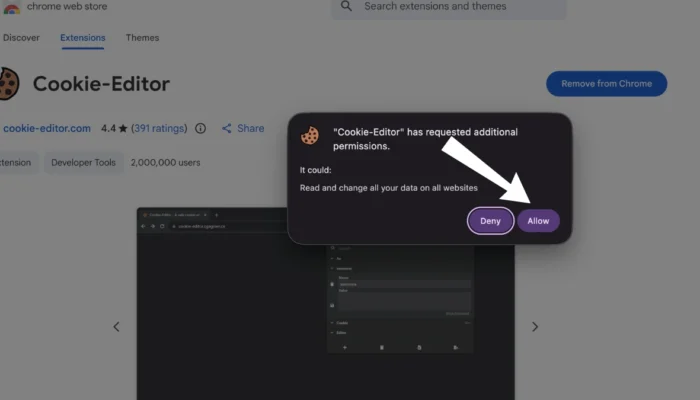
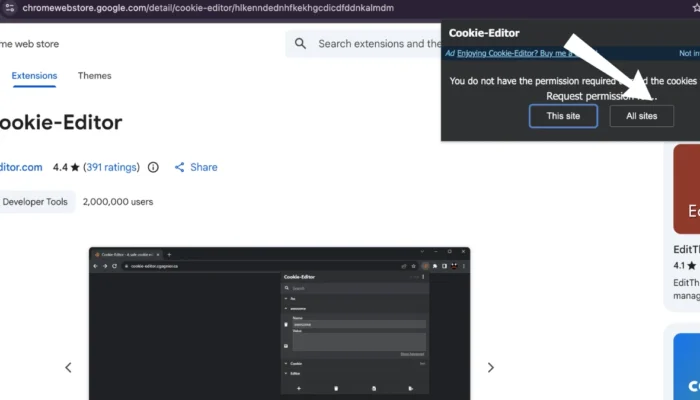
- Click on the Extensions icon in your browser toolbar
- Find and select Cookies Editor
- A permission prompt will appear
- Choose “All sites”
- Then click on “Allow”
Once you’ve done this, the extension will have full access to manage cookies across all websites, and you’re ready to use it without any issues.
How to Use Cookies Editor on Browser?
Using cookies editor extenion on browser is super duper easy, To use it for getting premium account for free you will need a Working premium account cookies. Assume you have the Netflix premium account cookies:
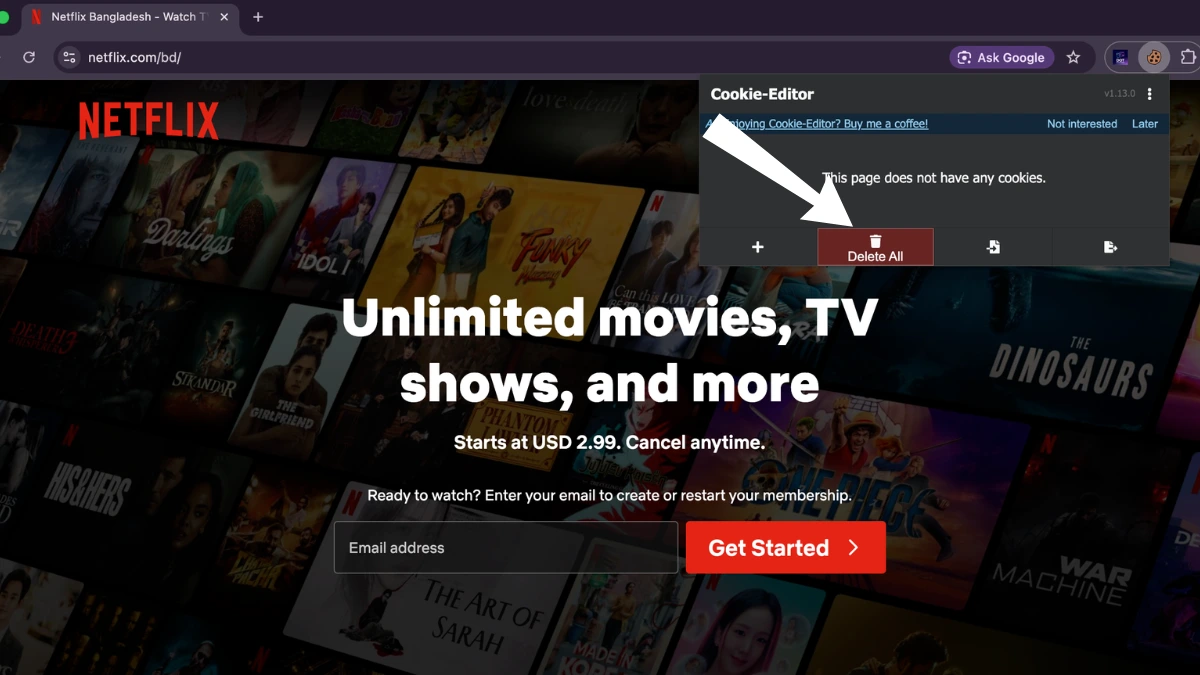
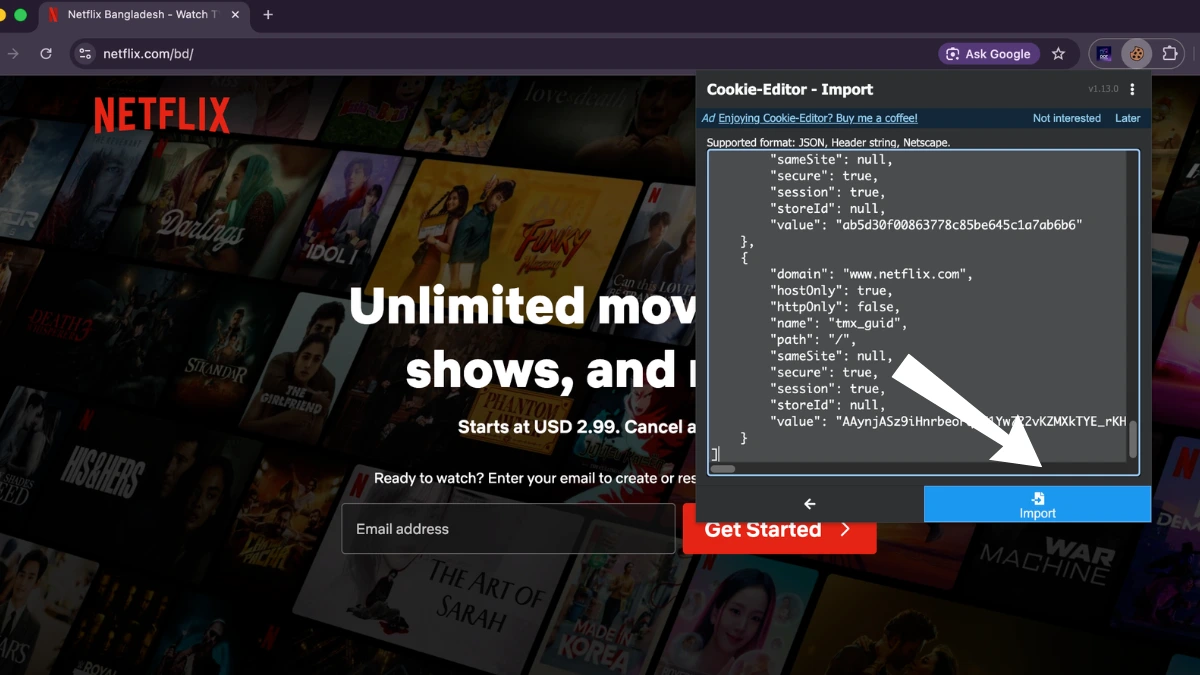
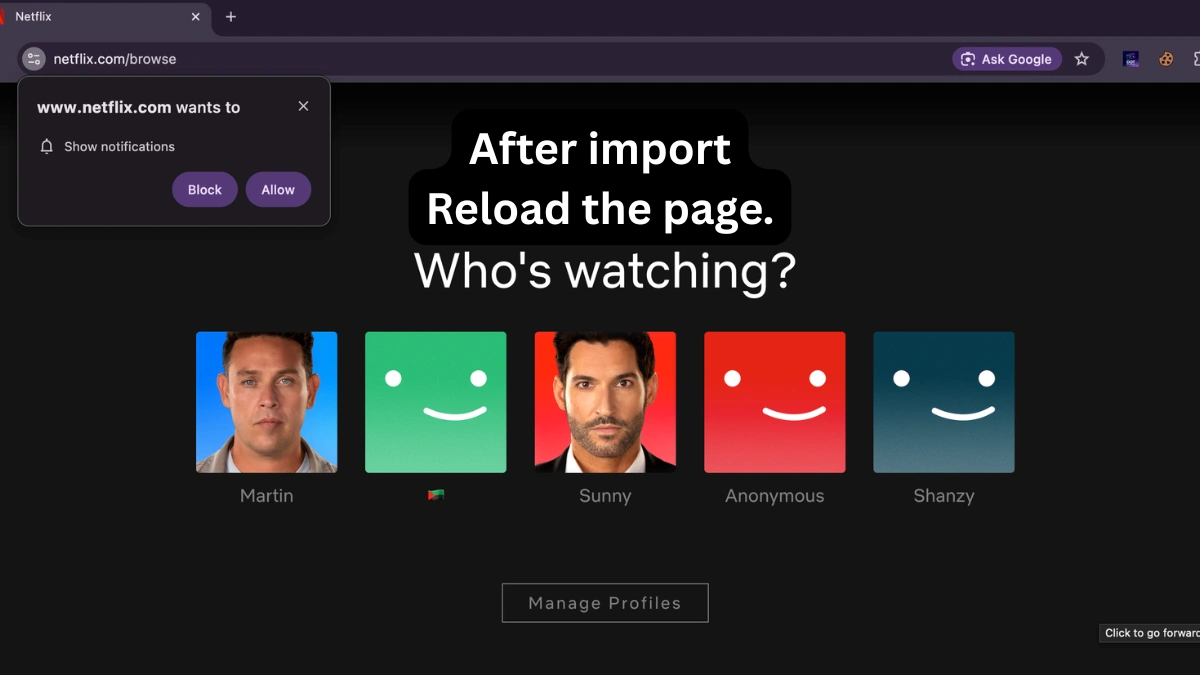
- Open your browser and go to Netflix.com.
- Click on the Cookies Editor icon to open the extension.
- Delete all existing cookies for the site to start fresh.
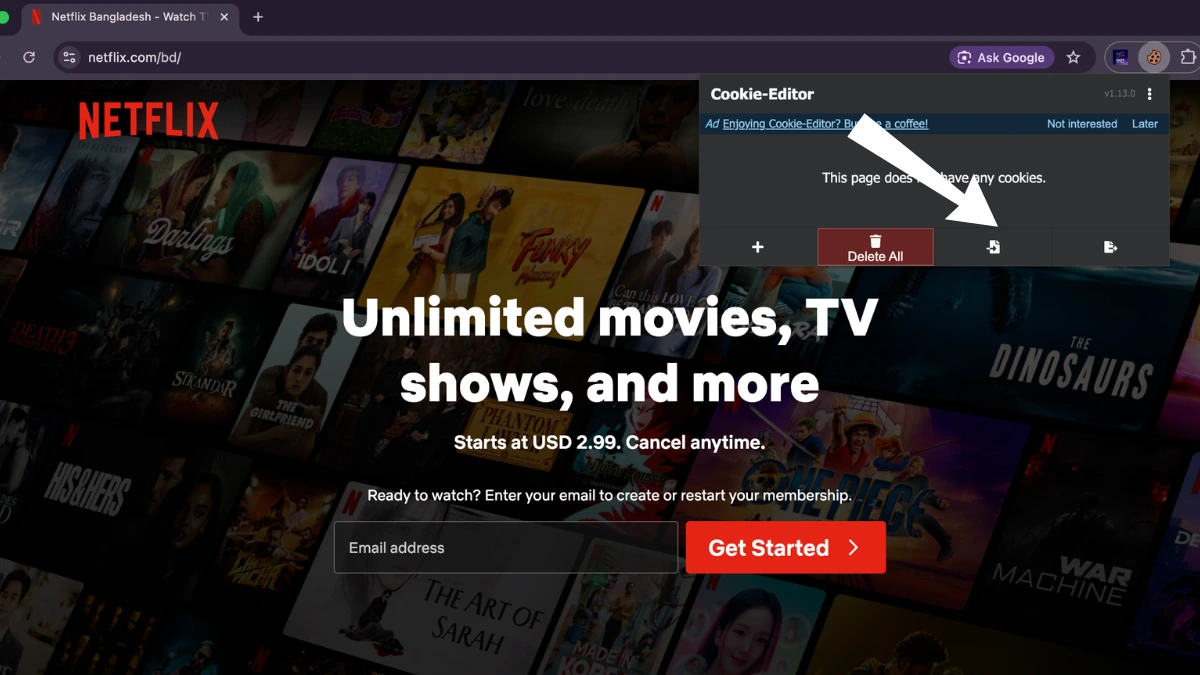
- Click on the Import button in the extension.
- Paste the Netflix premium cookies into the import box.
- Click Import again to load the cookies.
- Finally, reload the page.
Conclusion
The Cookies Editor extension proves to be an incredibly versatile tool that works seamlessly across all major desktop platforms—Windows, macOS, and Linux. Whether you’re using Chrome, Firefox, Edge, or any other Chromium-based browser, the installation and functionality remain largely consistent, making it accessible to users regardless of their operating system preference.