IPTV has become one of the easiest and most popular ways to watch online television around the world. Compared to traditional cable or dish connections, IPTV offers more flexibility, global access, and compatibility with multiple devices. Among all IPTV formats, M3U IPTV playlists are considered the simplest and most beginner-friendly option.
If you want to watch IPTV without complicated setup, the M3U format is the best choice. It works smoothly on almost every platform, including Windows, macOS, Android, iOS, Smart TVs, and TV boxes. All you need is a media player that supports online streaming, such as VLC Media Player, Kodi, or other IPTV-compatible apps.
In this article, you’ll let you know how to watch M3U IPTV playlists on VLC Player, along with step-by-step instructions for Windows, macOS, Android, and mobile devices.
What Is an M3U File?
An M3U file is a playlist format used to organize and play multimedia content such as IPTV channels, videos, and audio streams. The name “M3U” stands for MP3 URL, but today it is widely used for IPTV streaming.
Important things to understand about M3U files:
- An M3U file is not a video or audio file
- It contains links (URLs) to media streams
- Media players read these links and play the streams one by one
M3U files can reference content using:
- Online URLs
- Absolute file paths
- Relative file paths
When an M3U file is encoded using UTF-8 character format, it is saved as an M3U8 file.
Difference Between M3U and M3U8
The difference between M3U and M3U8 is purely technical and related to text encoding.
- M3U: Uses various character encodings
- M3U8: Uses UTF-8 encoding only
M3U8 is more modern and widely supported, especially for international IPTV playlists that include non-English channel names.
Functionally, both formats work the same way in IPTV players.
Why Use VLC Player for IPTV?
VLC Media Player is one of the most popular media players in the world—and for good reason, First of all download the VLC player from the official vlc download link for your device:
- Available on Windows, macOS, Linux, Android, and iOS
- Supports almost all media formats
- Completely free and open-source
- Works smoothly with M3U and M3U8 playlists
Because of this, VLC is an excellent choice for playing IPTV playlists in 2026.
How to Play M3U IPTV Playlist on VLC (Windows & Linux)
Method 1: Play M3U File (Offline Playlist)
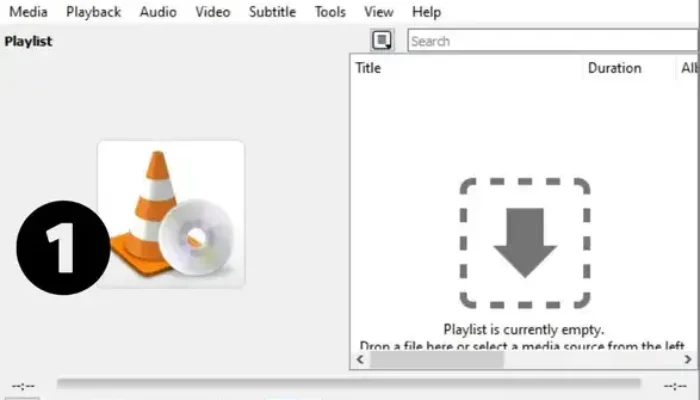
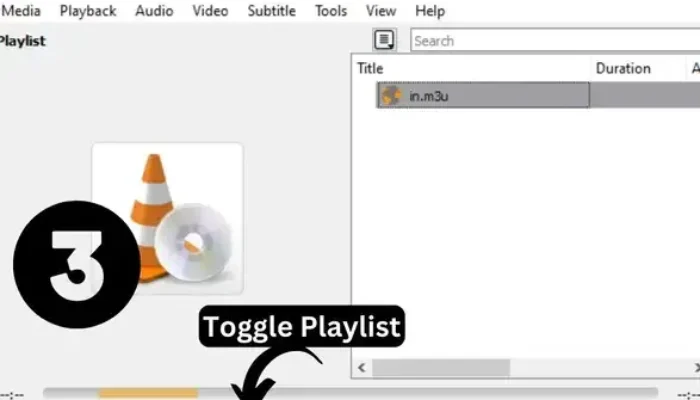
- Download and install VLC Media Player from the official VLC website
- Open VLC Media Player
- Drag and drop your
.m3uor.m3u8file directly into VLC - The IPTV channels will start playing automatically
You can switch channels using the Playlist or Next/Previous buttons.
Method 2: Play M3U IPTV URL (Online Playlist)
If you have an online M3U link, follow these steps:
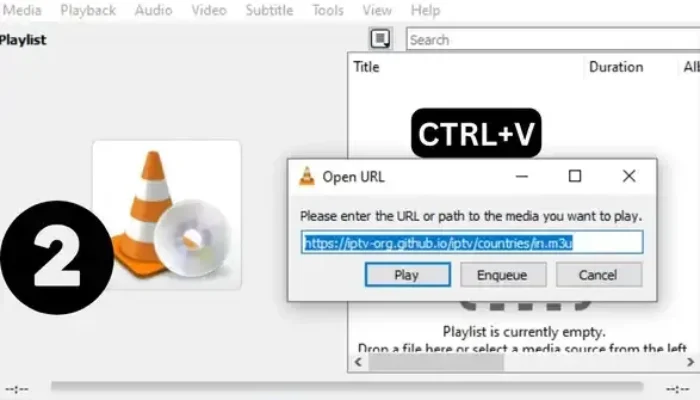
- Open VLC Media Player
- Press Ctrl + V (Windows/Linux) to paste your M3U URL
- Or go to Media → Open Network Stream
- Paste the M3U URL into the network field
- Click Play
The IPTV stream will start loading, and channels will appear one by one.
How to Watch M3U IPTV on VLC (macOS)
On macOS, VLC uses a slightly different interface, but the process is still simple.
Steps for macOS:
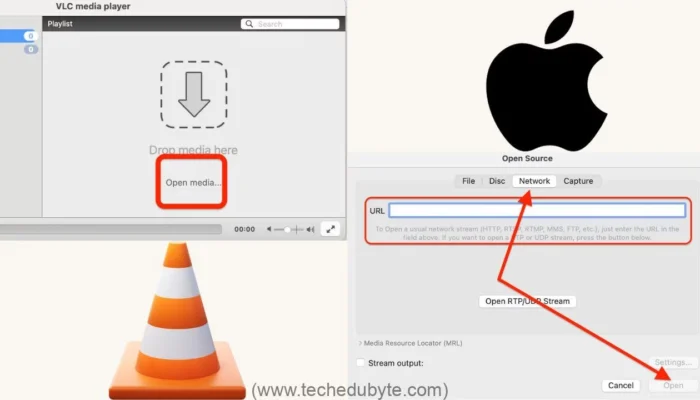
- Download and install VLC for macOS
- Open VLC Media Player
- Click File → Open Network
- Paste your M3U or M3U8 URL into the URL box
- Click Open
Your IPTV playlist will begin streaming instantly.
How to Add M3U IPTV to VLC on Android (Mobile Tutorial)
If you want to watch IPTV on your Android phone, VLC makes it very easy.
Steps for Android:
- Install VLC for Android from Google Play Store
- Open the VLC app
- Tap the Menu (☰) icon
- Select Stream or Open Network Stream
- Paste your M3U IPTV URL
- Tap Play
Your IPTV channels will now load and play directly on your mobile phone.
How to Use M3U IPTV on iPhone (iOS)
While VLC is available on iOS, many users also use IPTV-specific apps. However, VLC still works perfectly for M3U playlists.
Steps for iPhone:
- Install VLC for Mobile from the App Store
- Open the app
- Tap Network → Open Network Stream
- Paste your M3U URL
- Tap Open Network Stream
The IPTV playlist will start streaming on your iPhone.
How to Play M3U Playlist on Kodi Player
Kodi is another popular media player that supports IPTV.
Steps:
- Install Kodi on your device
- Open Kodi
- Go to Settings → Add-ons → Install from Repository
- Install IPTV Simple Client
- Go to PVR IPTV Simple Client Settings
- Add your M3U playlist URL
- Enable the add-on and restart Kodi
Kodi will load all IPTV channels into a TV-style interface.
Common M3U IPTV Problems and Fixes
If your M3U IPTV doesn’t work, try these solutions:
- Check if the M3U URL is still active
- Ensure your internet connection is stable
- Try opening the playlist in another player
- Update VLC to the latest version
- Use M3U8 instead of M3U if available
Most IPTV issues come from expired or overloaded playlist URLs.
Best Tips for Smooth IPTV Streaming
- Use a stable internet connection
- Prefer wired connections for Smart TVs
- Avoid overloaded public playlists
- Keep backup M3U URLs
- Use updated players
Conclusion
Now you know how to watch M3U IPTV playlists on VLC Player in 2026 across all major platforms—Windows, macOS, Android, and iOS. VLC remains one of the easiest and most reliable players for IPTV streaming, especially for beginners.
Whether you are using a local M3U file or an online M3U URL, VLC makes IPTV playback simple and accessible. If you ever face issues while playing IPTV playlists, feel free to test the playlist on another player or update your VLC version.
If you’re looking for live and working M3U IPTV playlists, you can explore IPTV catagory to find updated links.