Kodi is one of the most popular media players in the world, mainly because of its flexibility and huge collection of add-ons. With the right add-on, you can easily stream live TV using M3U IPTV playlists on Kodi without any complicated setup.
If you’re searching for a simple and working method to watch M3U playlists on Kodi, you’re in the right place. In this guide, we’ll explain everything step by step—from understanding Kodi to installing and configuring the PVR IPTV Simple Client.
What Is Kodi Player?
Kodi is a free and open-source media player that works as a complete digital entertainment center. It allows users to play videos, music, live TV, podcasts, and even screen casts from a single application.
One of the biggest advantages of Kodi is its cross-platform availability. You can install Kodi on almost any device, including:
- Android phones & Android TV
- Windows and macOS
- Linux
- iOS
- Smart TVs & TV Boxes
- Amazon Fire TV / Firestick
- Raspberry Pi
- Xbox
With the help of add-ons, Kodi can also be used as a powerful IPTV player.
How to Watch M3U IPTV on Kodi Player?
Kodi does not support M3U playlists by default. To stream IPTV channels, you need to install an official add-on called PVR IPTV Simple Client.
The setup process is very easy and usually takes less than 5 minutes. Once configured, you can watch live TV channels directly from the Kodi interface.
Below is the complete guide to installing and setting up the PVR IPTV Simple Client on Kodi.
How to Install PVR IPTV Simple Client on Kodi
Follow these steps carefully:
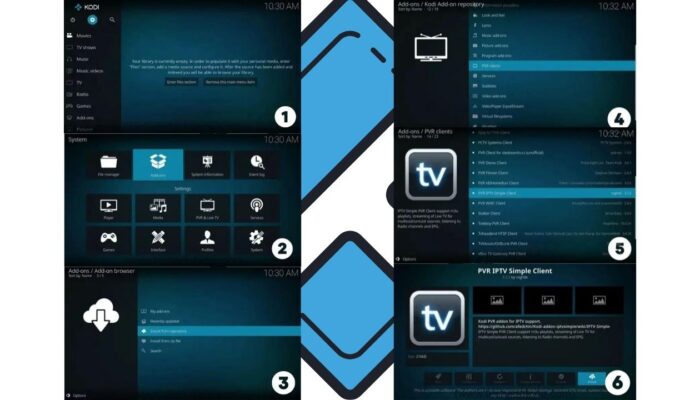
Before proccess download KODI Player for your device from the KODI official donwload link.
- Download and install Kodi on your device from the official source.
- Open the Kodi Player.
- Click the Settings (⚙️) icon from the top-left corner.
- Select Add-ons.
- Click on Install from repository.
- Choose Kodi Add-on Repository.
- Open PVR Clients.
- Scroll down and select PVR IPTV Simple Client.
- Click Install and wait for the installation to complete.
Once installed, you’ll see a confirmation message on the screen.
How to Add M3U Playlist to Kodi (PVR IPTV Simple Client)
After installing the add-on, you need to add your M3U playlist URL to start watching IPTV.
Step-by-step configuration:
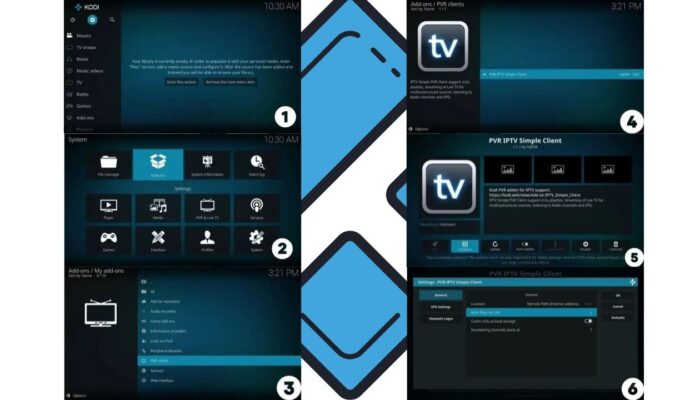
- Go back to Add-ons → PVR IPTV Simple Client.
- Click on Configure.
- Open the General tab.
- Find M3U Playlist URL.
- Paste your M3U playlist link (GitHub or any other source).
- Click OK to save settings.
- Exit Kodi and restart the application.
After restarting:
- The PVR client will start automatically
- Kodi will scan and load all channels from the M3U playlist
How to Watch IPTV Channels on Kodi
Once the playlist is loaded:
- Go to the TV section in Kodi.
- Click on Channels.
- Browse and select any channel from your M3U playlist.
- Enjoy live IPTV streaming on Kodi 🎉
Final Words
That’s it! After completing these steps, your PVR IPTV Simple Client will be fully set up, and you’ll be ready to watch live TV using an M3U playlist on Kodi.
The entire process is quick, beginner-friendly, and unlocks a huge world of IPTV content. Grab some popcorn, relax, and enjoy your favorite channels without hassle.
For more IPTV tutorials, updates, and working playlists, don’t forget to join our Telegram channel and explore our other IPTV-related guides.