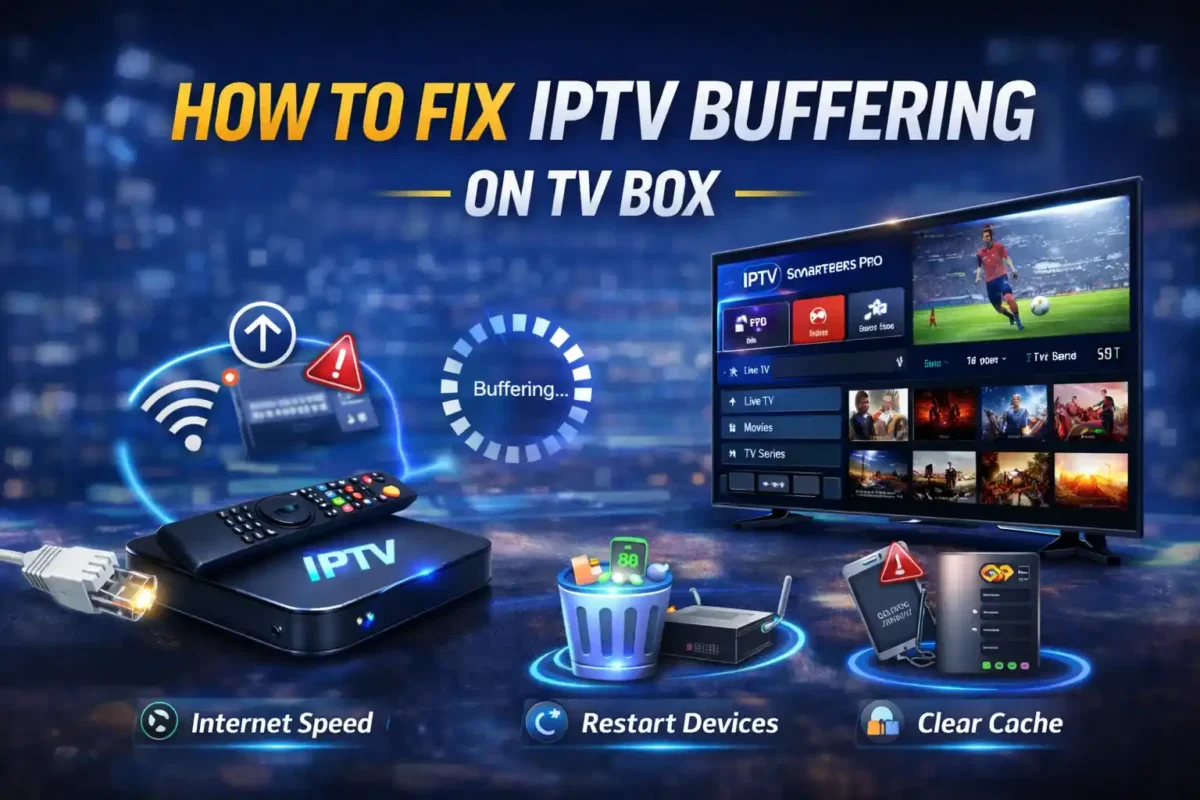
IPTV streaming buffering is one of the most frustrating problems for Android TV box users. You sit down to watch your favorite live sports event or movie, and suddenly the stream starts freezing, loading, or dropping quality. If you are experiencing constant buffering, lag, or channel freezing, don’t worry — in most cases, the issue can be fixed easily.
In this troubleshooting article, you will know the exact reason how to fix IPTV buffering on Android TV box step by step. We will cover internet issues, device performance problems, IPTV app settings, and provider-related causes so you can identify and solve the root of the problem.
- How to Install IPTV Smarters on Android TV Box
- Best IPTV Player Apps for Android TV Box
- How to Set Up IPTV on Android TV Box (Step-by-Step Guide)
Why IPTV Buffers on Android TV Box
Before fixing buffering, it’s important to understand why it happens. IPTV streaming depends on three main components: your internet connection, your Android TV box performance, and your IPTV provider’s server stability. If any of these are weak, buffering will occur.

Most buffering issues are caused by unstable internet speed, WiFi interference, overloaded IPTV servers, outdated IPTV apps, or insufficient device memory. Instead of randomly changing settings, you should troubleshoot systematically.
How to fix IPTV Buffering on TV Box?
I know the buffer is annoying. If you found your IPTV keeps buffering while streaming, don’t panic. Follow the steps below to 100% fix your IPTV buffering problem on your Android TV box.
Step 1: Check Your Internet Speed First
The most common cause of IPTV buffering is slow or unstable internet.
For smooth streaming, you generally need:
- 5 Mbps for SD channels
- 10–15 Mbps for HD channels
- 25+ Mbps for 4K content
However, speed alone is not enough. Stability matters more than raw speed. Even if you have 50 Mbps, unstable WiFi can still cause buffering.
What You Should Do:
Run a speed test directly on your Android TV box or using a nearby device connected to the same network. If speed fluctuates heavily, your network is unstable.
If you are using WiFi, switch to a wired Ethernet connection. Ethernet provides more consistent performance and significantly reduces IPTV buffering issues.
Step 2: Restart Your Router and Android TV Box
Sometimes buffering happens due to temporary network congestion or memory overload.
A simple restart can clear cached memory and refresh your connection.
Follow this process:
- Turn off your Android TV box completely.
- Unplug your router for at least 3–5 minutes.
- Plug the router back in and wait until the internet stabilizes.
- Turn on your Android TV box again.
This simple step often fixes IPTV buffering instantly.
Step 3: Clear IPTV App Cache
Over time, IPTV apps store temporary files that can slow down performance. If you are using apps like IPTV Smarters, TiviMate, or XCIPTV, clearing cache can improve performance.
Go to your Android TV box settings, find the Apps section, select your IPTV app, and choose “Clear Cache.” Avoid clearing data unless necessary, as that may remove your login details.
Clearing cache helps reduce freezing and lag, especially if the app has not been restarted in a long time.
Step 4: Adjust IPTV App Settings
Many IPTV apps include settings that directly affect buffering performance.
Inside your IPTV player settings, look for options such as:
- Hardware decoding
- Buffer size
- Video player selection
Enable hardware decoding if available. This allows your device’s processor to handle video playback more efficiently.
If your IPTV app allows buffer adjustment, increase the buffer size slightly. A larger buffer can reduce frequent loading interruptions.
Also, try switching between the built-in player and an external player like VLC to see which performs better on your device.
Step 5: Close Background Apps
Android TV boxes often run background applications that consume RAM and CPU power. If too many apps are running, your IPTV stream may lag.
Go to settings and force stop unused apps. If your device has limited RAM (1GB or 2GB), this step is especially important.
For older Android TV boxes, regular reboots help maintain smoother IPTV streaming performance.
Step 6: Check Your IPTV Provider
If your internet and device are working fine but buffering continues, the issue may be on your IPTV provider’s side.
IPTV servers can become overloaded during:
- Major sports events
- Peak evening hours
- High-demand live broadcasts
If buffering only happens during specific channels or times, your provider’s server may be congested.
You can test this by:
- Trying another channel
- Using a backup playlist (if available)
- Contacting your IPTV provider
A good IPTV provider maintains stable servers and load balancing.
Step 7: Reduce Video Quality
If you are streaming 4K content on a slow connection, buffering is almost guaranteed.
Try switching to HD or SD resolution and check if buffering stops. Lower resolution reduces bandwidth consumption and improves stream stability.
This is especially useful for users with limited internet speeds.
Step 8: Update Your IPTV App and Android System
Outdated IPTV apps may contain bugs that cause playback issues.
Go to Google Play Store and check for updates for your IPTV app. Also check for system updates in your Android TV box settings.
Software updates often improve performance, compatibility, and streaming stability.
Step 9: Check DNS Settings
Sometimes IPTV buffering is caused by slow DNS resolution from your ISP.
You can manually set a public DNS like:
- Google DNS (8.8.8.8 / 8.8.4.4)
- Cloudflare DNS (1.1.1.1)
Changing DNS can improve stream loading speed in some regions.
Step 10: Consider Upgrading Your Android TV Box
If you are using an older Android TV box with low RAM and outdated processor, buffering may continue regardless of internet speed.
Modern IPTV apps require decent hardware performance. Devices with at least 2GB RAM and quad-core processors perform significantly better.
If your device frequently freezes, upgrading to a newer Android TV box may permanently solve IPTV buffering issues.
How to Prevent IPTV Buffering in the Future
Preventive steps can reduce future buffering problems:
- Always use Ethernet instead of WiFi
- Keep apps updated
- Restart your router weekly
- Avoid overloading your network with multiple 4K streams
- Choose a reliable IPTV provider
A stable home network combined with a good IPTV player ensures a smooth viewing experience.
Final Thoughts
IPTV buffering on Android TV box can be annoying, but it is rarely a permanent issue. In most cases, the problem is caused by unstable internet, overloaded servers, outdated apps, or limited device performance.
By following the troubleshooting steps in this guide — checking internet speed, switching to Ethernet, clearing app cache, adjusting player settings, and verifying provider stability — you can significantly reduce or completely eliminate buffering.
Streaming should be smooth and enjoyable. With proper setup and maintenance, your Android TV box can deliver a cable-like IPTV experience without interruptions.