
In today’s digital world, websites rely heavily on cookies to store user data, manage sessions, and personalize experiences. While most users never interact with cookies directly, having control over them can be extremely useful—especially for developers, testers, and privacy-conscious users. This is where the Cookie-Editor comes in. It is a simple yet powerful browser extension that allows you to view, edit, import, export, and delete cookies in just a few clicks. In this article we will let you know how you can use cookies editor extension on any android device.. So without further due let get started with the tutorial.
What is Cookies Editor Extension?
The Cookies Editor Extension is a powerful browser tool that allows users to easily view, edit, create, delete, import, and export cookies directly from their browser. Commonly used by developers, testers, and advanced users, this extension provides full control over website cookies without needing complex coding knowledge. With a simple interface, users can manage session data, troubleshoot login issues, or test how websites behave under different cookie conditions. Extensions like Cookie-Editor (available on Chrome and other Chromium-based browsers) make it especially convenient to handle cookies in real time, helping improve web development, debugging, and privacy management.
Which Android Browser is support chrome extension?
When it comes to using Chrome extensions on Android, not all browsers offer full support. One popular option is Kiwi Browser, which is well-known for allowing users to install many Chrome Web Store extensions. However, it’s important to note that some extensions—like the Cookie-Editor—do not work properly or are not supported in Kiwi Browser. Because of this limitation, a better alternative is Yandex Browser with Alice. This browser provides smoother and more reliable support for Chrome extensions, including Cookie Editor, making it a more effective choice for users who need full cookie management functionality on their Android devices.
How to download Yandex Browser with Alice.
Downloading Yandex Browser with Alice is super easy and only takes a minute. Just open the Google Play Store on your Android device, type “Yandex Browser with Alice” in the search bar, and tap on the official app from Yandex. Then hit the Install button, and it will start downloading automatically. Once installed, you can open the browser and start using it right away. It’s lightweight, smooth, and works really well for running Chrome extensions like Cookie Editor without any issues.
How to install Cookies Editor extension on Android?
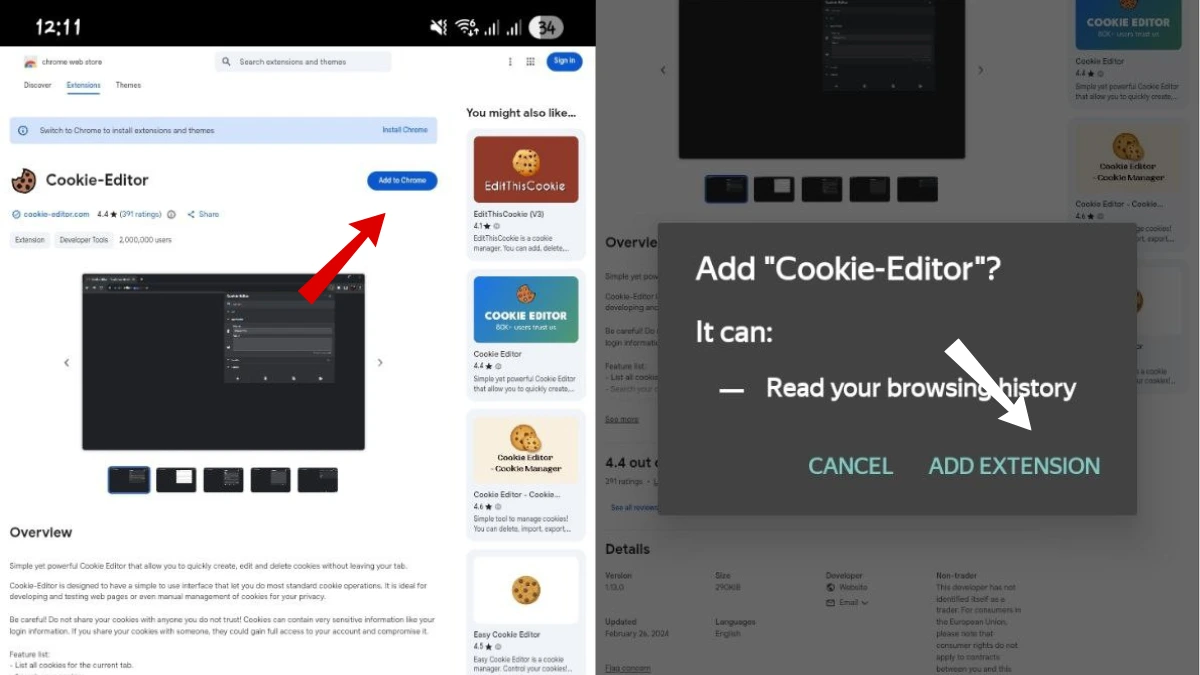
To install the Cookie-Editor extension on Android, first open your Yandex Browser with Alice. Then go to the Chrome Web Store website and search for “Cookies Editor.” Once you find the extension, tap on the “Add to Chrome” button. A small popup will appear asking for confirmation—just tap “Add Extension.” Within a few seconds, the extension will be installed and ready to use in your browser. Now you can easily manage, edit, or delete cookies directly from your Android device without any hassle.
How to active Cookies Editor extension on Yandex Browser.
To activate the Cookie-Editor on your Yandex Browser with Alice, just follow these simple steps:
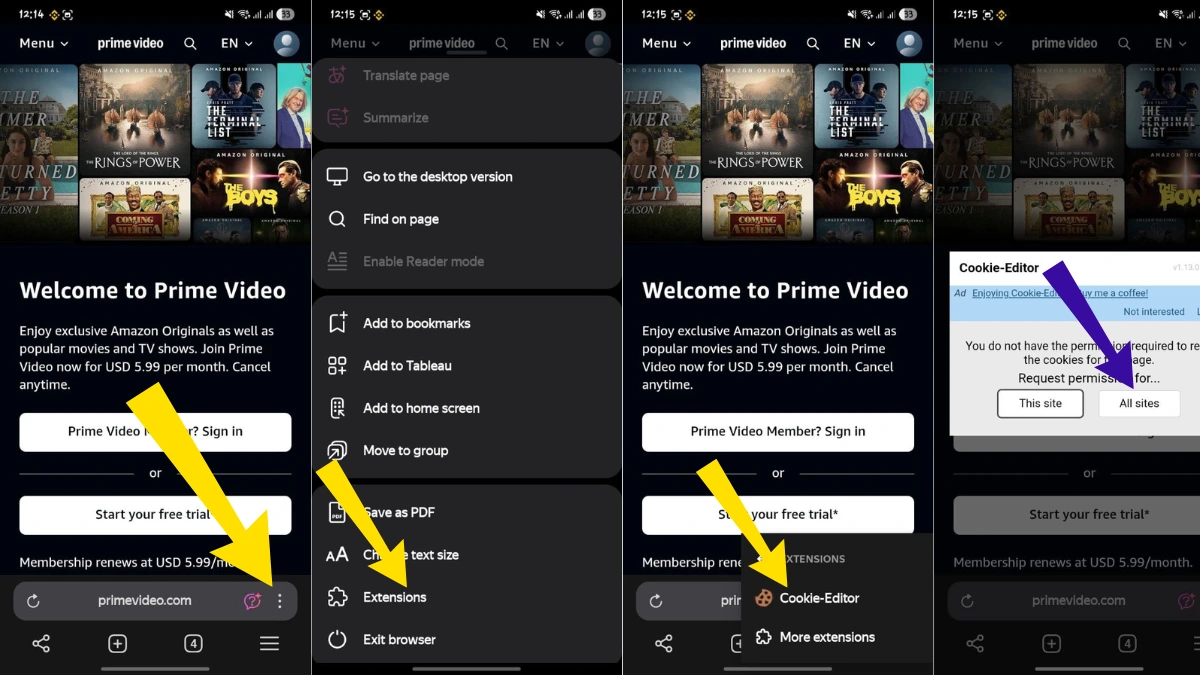
- Open any website in your browser (this is important so the extension can run)
- Tap on the three-dot menu (⋮) in the address bar
- Scroll down and tap on Extensions
- You’ll see Cookies Editor in the list — tap on it
- A permission popup will appear
- Select “All sites” and then tap “Allow”
That’s it! Your Cookies Editor extension is now active and ready to use on your browser.
How to use Cookies editor extension on android?
Here’s how I use the Cookies Editor extension on Android Yandex Browser to get premium access on sites like Prime Video, Netflix, Grammarly, ChatGPT, and more:
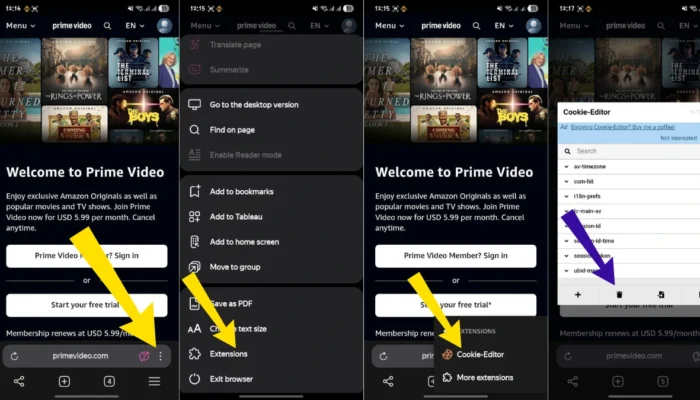
- Install the extension
First, I installed the Cookies Editor extension on Yandex Browser for Android. It’s really easy to use once it’s set up. - Go to the website
Let’s say I want to use Prime Video. I open the site in Yandex Browser. - Open Cookies Editor
I tap the three-dot menu in the address bar, go to Extensions, and select Cookies Editor. - Clear existing cookies
In the extension, I delete all the current cookies for the site to start fresh. - Copy a working cookie JSON
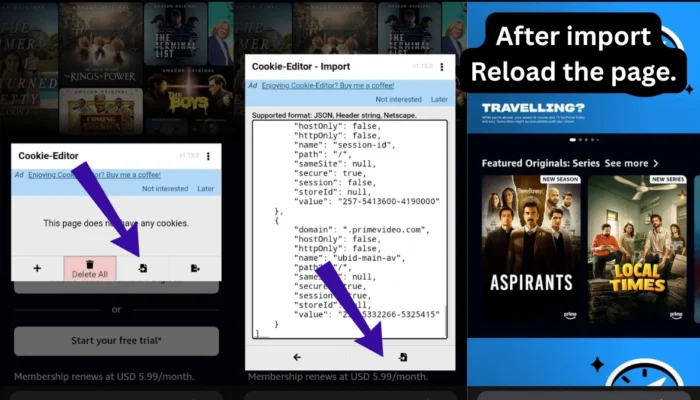
I grab a valid Prime Video cookie JSON (from a source that provides working premium cookies). - Import the cookies
In Cookies Editor, I tap on Import, paste the JSON, and confirm by tapping Import again. - Reload the page
After importing, I refresh the page. If the cookies are still active, I’m automatically logged in with premium access.
That’s it! This method can be used for other platforms too, as long as you have working cookies for them.
Conclusion
Cookies play a vital role in how websites function and remember users, and having the ability to manage them directly from your browser can open up a world of possibilities. The Cookies Editor extension, especially when used on Yandex Browser with Alice, gives Android users a simple and effective way to take full control of cookies—whether for development, testing, privacy, or even accessing premium content.