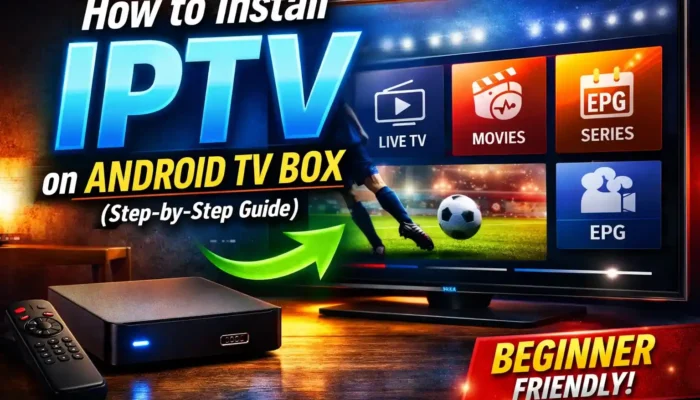
If you’ve recently bought an Android TV box and want to stream live TV, sports, movies, and series, setting up IPTV is the best way to unlock its full potential. In this detailed guide, I’ll explain How to install IPTV on Android TV Box, which apps to use, how to configure them, and how to fix common issues.
Whether you’re a beginner or already familiar with streaming devices, this step-by-step tutorial will help you understand everything about IPTV Android TV Box setup in a simple and practical way.
What Is IPTV and How Does It Work?
IPTV (Internet Protocol Television) delivers TV channels and video content through the internet instead of cable or satellite. Instead of using a dish or antenna, IPTV streams content using your broadband connection.
- Best IPTV Player Apps for Android TV Box
- How to Install IPTV Smarters on Android TV Box
- How to Fix IPTV Buffering on Android TV Box?
With an IPTV Android TV Box, you can enjoy a complete home entertainment experience right from your living room. It allows you to watch live TV channels from different countries, stream sports and special events in real time, and access a huge library of movies and TV series on demand. Many IPTV services also include catch-up TV features, so you can watch previously aired programs at your convenience. Additionally, you can view the EPG (Electronic Program Guide), which helps you check schedules, upcoming shows, and channel information easily.
To get started, all you need is an Android TV Box connected to your television, a stable internet connection for smooth streaming, an active IPTV subscription that provides an M3U playlist or Xtream Codes login details, and a reliable IPTV player app installed on your device. Once these essentials are ready, you can transform your regular TV into a powerful streaming hub within minutes.
What You Need Before Installing IPTV
Before learning How to install IPTV on TV box, make sure you have:
- ✅ Android TV Box (running Android 7.0 or above recommended)
- ✅ Internet connection (minimum 15 Mbps for smooth HD streaming)
- ✅ IPTV subscription from a reliable provider
- ✅ Best IPTV player app installed
Now let’s move to the actual installation process.
Step 1: Connect and Set Up Your Android TV Box
Before installing IPTV:
- Connect your Android TV Box to your TV using HDMI.
- Power it on.
- Connect to WiFi or Ethernet.
- Log in to your Google account (required for Play Store).
Once your box is ready, you can install IPTV apps.
Step 2: How to Install IPTV on Android TV Box (Using Play Store)
The easiest method to learn How to install IPTV on Android TV Box is by using Google Play Store.
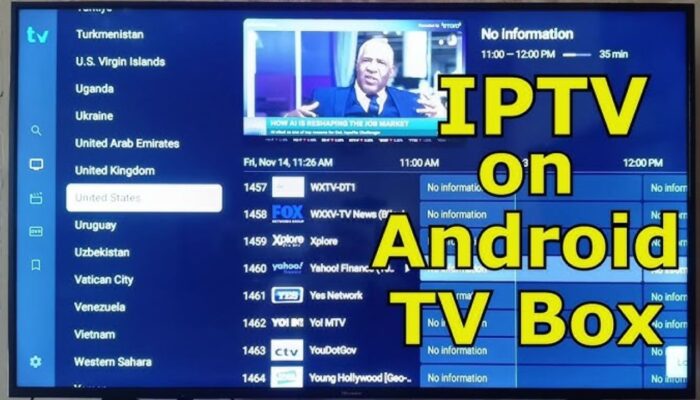
Method 1: Install IPTV Smarters Pro
One of the most popular apps is IPTV Smarters Pro.
Steps:
- Open Google Play Store.
- Search for IPTV Smarters Pro.
- Click Install.
- Open the app after installation.
The IPTV Smarter PRO for TV BOX supports:
- M3U playlist
- Xtream Codes API
- EPG support
- Multi-screen
- VOD
This is the most stable IPTV apps available for Android devices.
Step 3: Setup IPTV on IPTV Smarter PRO
After installing the app:
- Open IPTV Smarters.
- Click “Add User”.
- Choose:
- Load Your Playlist (M3U URL)
OR - Login with Xtream Codes API
- Load Your Playlist (M3U URL)
Enter details provided by your IPTV provider:
- Username
- Password
- Server URL
Click Login.
Within a few seconds, channels will load.
Step 4: How to Use IPTV in Android TV
Now let’s understand How to use IPTV in Android TV properly.
After Login You’ll See:
- Live TV
- Movies
- Series
- EPG
- Catch Up (if available)
Tips for Smooth Usage:
- Use Ethernet cable for stable streaming.
- Enable hardware decoding in settings.
- Clear app cache if buffering occurs.
- Update app regularly.
Learning How to use IPTV in Android TV properly ensures a better viewing experience without lag or crashes.
Alternative Apps for IPTV Android TV Box
If IPTV Smarters Pro is not available in your region, you can use other apps.
1️⃣ TiviMate IPTV Player
TiviMate IPTV Player is widely considered one of the best choices for Android TV devices because it is designed specifically for large screens and remote navigation. Unlike many basic IPTV apps, TiviMate offers a clean and modern interface that feels similar to traditional cable TV layouts. It supports advanced EPG (Electronic Program Guide) integration, allowing you to browse channels by time and date, preview upcoming programs, and organize your favorites efficiently. The app also supports multiple playlists, which is useful if you use more than one IPTV subscription.
The premium version unlocks additional features such as recording, catch-up support, custom channel grouping, and backup/restore options. For users who want a smooth and professional IPTV experience on an Android TV box, TiviMate is often the top recommendation.
2️⃣ XCIPTV Player
XCIPTV Player is another reliable option for Android TV users who want a straightforward setup process. It is lightweight, stable, and works well even on mid-range Android TV boxes. The interface is simple but functional, offering separate sections for live TV, movies, and series. XCIPTV supports Xtream Codes API login as well as M3U playlists, making it compatible with most IPTV providers.
It also includes built-in media players and external player support, which can improve playback performance depending on your device. For users who prefer a no-complicated setup with smooth navigation, XCIPTV is a practical choice.
3️⃣ Free IPTV APK for Android TV Box
Many users look for a Free IPTV APK for Android TV box to avoid paying subscription fees. While there are free IPTV apps available, it’s important to understand that most of them do not provide content on their own. They function only as IPTV players, meaning you still need to add your own M3U playlist or Xtream Codes details. Some free apps may offer publicly available streams, but these are often unstable, low quality, or frequently offline.
If you are searching for an IPTV app for Android TV free, you can try apps like IPTV (by Alexander Sofronov) or the free version of OTT Navigator. These apps are legitimate IPTV players and available through official app stores. However, even with these free applications, you will still need a valid IPTV playlist from a provider. Free apps can be useful for testing purposes, but for long-term stability and better features, premium IPTV player apps usually deliver a more reliable experience.
How to Install IPTV on TV Box Using APK File (Sideload Method)
Sometimes an IPTV app is not available in the Google Play Store for your region or device. In that case, you can manually install it using an APK file. This method is called sideloading. Below is a detailed, step-by-step explanation of how to do it safely and correctly.
Step 1: Download the APK File from the Official Website
First, you need the correct APK file of the IPTV app you want to install.
- Open a browser on your computer or Android TV box.
- Visit the official website of the IPTV app (avoid third-party or unknown APK sites).
- Download the latest version of the APK file.
- Make sure the file matches your device architecture (most Android TV boxes use ARM-based processors).
It is very important to download APK files only from trusted and official sources to avoid malware or modified applications.
Step 2: Transfer the APK File to Your Android TV Box
After downloading the APK file, you need to move it to your TV box. There are two common methods:
Method 1: Using a USB Drive
- Copy the downloaded APK file to a USB flash drive.
- Safely eject the USB from your computer.
- Insert the USB drive into your Android TV box.
- Open a File Manager app on your TV box (if not installed, download one from Play Store).
- Navigate to the USB storage.
- Locate the APK file.
This is the simplest method if your TV box has a USB port.
Method 2: Using the Downloader App
If you prefer installing directly from the internet:
- Open Google Play Store on your Android TV box.
- Search for “Downloader” and install it.
- Open the Downloader app.
- Enter the official APK download URL.
- Click Download.
- Wait for the file to finish downloading.
This method is useful if you do not want to use a computer or USB drive.
Step 3: Enable Unknown Sources
By default, Android blocks apps installed outside the Play Store. So you need to allow installation from unknown sources.
Follow these steps:
- Go to Settings on your Android TV box.
- Navigate to Security or Privacy.
- Find the option called “Unknown Sources” or “Install Unknown Apps.”
- Enable permission for:
- File Manager (if using USB method)
- Downloader (if using Downloader app)
This step allows your device to install APK files manually.
Step 4: Install the APK File
Now you’re ready to install the IPTV app.
- Open File Manager or Downloader.
- Locate the downloaded APK file.
- Click on it.
- Select Install.
- Wait for the installation process to complete.
- Click Open to launch the app.
Once installed, you can log in using your IPTV subscription details (M3U playlist or Xtream Codes).
Important Safety Tips
- Always download APK files from official websites.
- Avoid modified or “cracked” IPTV apps.
- Keep your Android TV box system updated.
- Scan APK files if possible before installation.
- Disable Unknown Sources after installation for better security.
How to Install IPTV on Smart TV (Without Android Box)
If you don’t have an Android TV box, you may want to know How to install IPTV on Smart TV directly.
Samsung Smart TV:
- Install IPTV Smarters from app store (if available)
- Or use Smart IPTV app (paid activation)
LG WebOS:
- Install IPTV app from LG Content Store
- Upload playlist via app website
However, Android TV boxes provide better performance compared to built-in TV apps.
Common IPTV Setup Problems & Fixes
1️⃣ IPTV Not Loading
- Check internet speed.
- Verify M3U URL.
- Restart router.
2️⃣ Buffering Issues
- Use wired connection.
- Reduce stream quality.
- Close background apps.
3️⃣ Invalid Login Details
- Re-check username/password.
- Confirm subscription is active.
Best Internet Speed for IPTV Android TV Box
For smooth streaming:
- SD: 5 Mbps
- HD: 10–15 Mbps
- 4K: 25+ Mbps
Using Ethernet cable instead of WiFi is strongly recommended for stable performance.
Security Tips for IPTV Users
- Always download apps from official sources.
- Avoid unknown APK websites.
- Use strong WiFi password.
- Keep Android TV updated.
If your ISP blocks IPTV services, users sometimes consider VPN for privacy. Choose reliable and legal options only.
Frequently Asked Questions (FAQ)
Is IPTV legal?
IPTV technology itself is legal. However, legality depends on your IPTV provider and local laws.
Do I need subscription?
Yes. Even if you install a Free IPTV APK for Android TV box, you usually need a playlist or provider.
Can I use IPTV without internet?
No. IPTV works only with internet connection.
Which is the best IPTV app?
Many users prefer IPTV Smarters Pro and TiviMate.
Conclusion
Setting up IPTV becomes very easy once you clearly understand the process and follow the correct steps. In this guide, we covered How to install IPTV on Android TV Box, discussed the best apps for IPTV Android TV Box, explained How to use IPTV in Android TV properly, explored alternative IPTV app for Android TV free options, and also outlined How to install IPTV on Smart TV for users without a TV box. By following these instructions carefully, most users can complete the installation within just 5–10 minutes without any technical difficulty.
An Android TV box combined with a reliable IPTV subscription can completely transform your regular television into a powerful and flexible streaming system. From watching live sports and international channels to enjoying movies and TV series on demand, IPTV offers a modern entertainment solution that is both convenient and cost-effective. Once everything is set up correctly, you can enjoy smooth streaming and full control over your viewing experience right from your home.