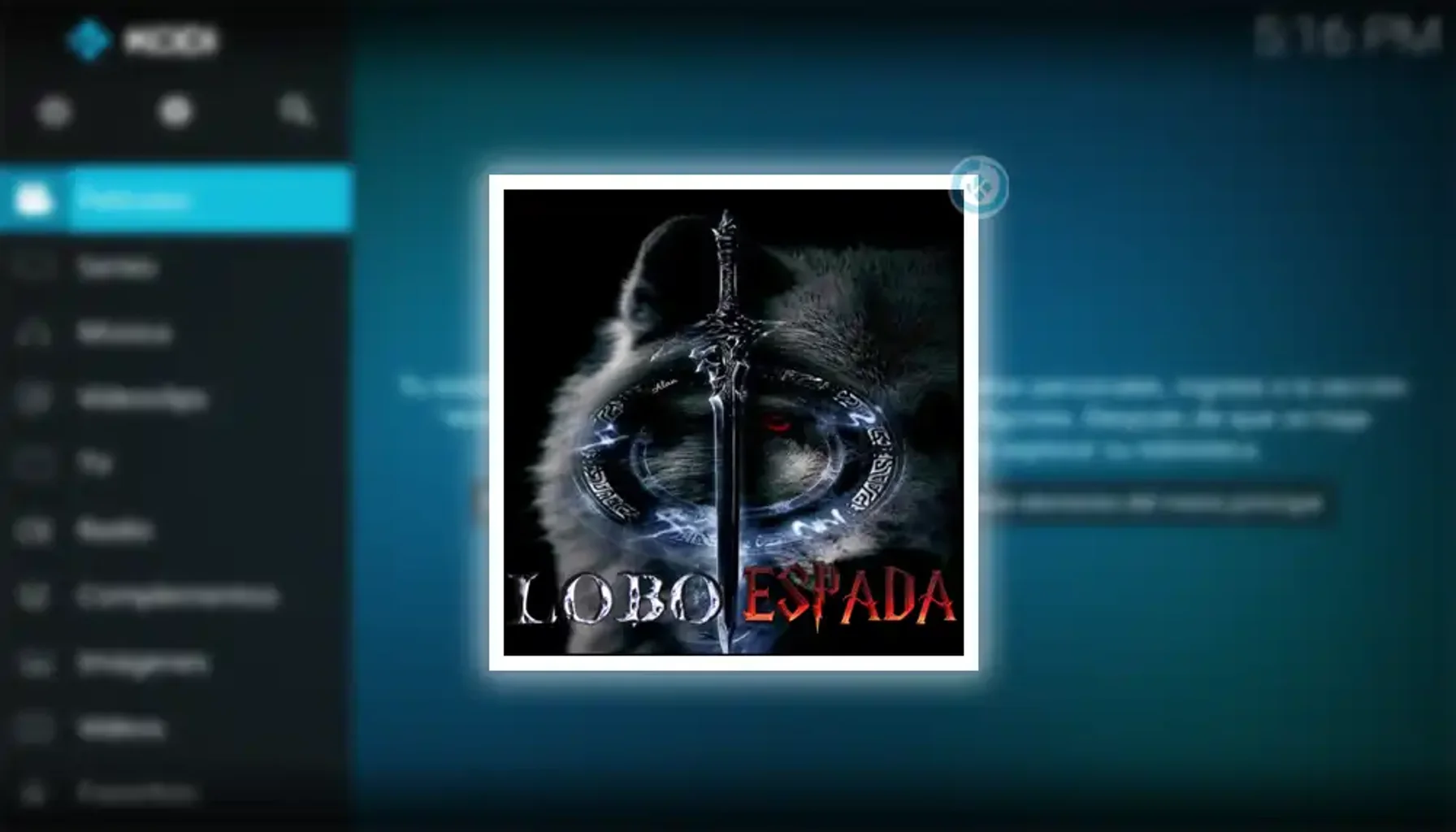
How to Install Lobo Espada Addon in Kodi [TV]
Kodi remains one of the most popular media center platforms, offering users the ability to stream movies, TV shows, live sports, and more. One of the best ways to expand Kodi’s functionality is by installing third-party addons. Lobo Espada is a well-known Kodi addon that provides access to a wide range of entertainment content. In this guide, we’ll walk you through the step-by-step process of installing Lobo Espada Addon in Kodi, ensuring you can enjoy all its features hassle-free.
What is Lobo Espada Addon?
Lobo Espada is a popular Kodi addon that offers a vast library of movies, TV series, live TV channels, and sports content. It is especially favored by users who enjoy Spanish-language content, though it also includes international media. The addon is known for its user-friendly interface and regular updates, making it a reliable choice for Kodi enthusiasts.
Is Lobo Espada Addon Safe and Legal?
Before installing any third-party Kodi addon, it’s important to consider safety and legality. Lobo Espada is not available in Kodi’s official repository, which means it comes from a third-party source. While the addon itself is generally safe, downloading from unverified sources can pose risks. To protect your privacy and security, it’s highly recommended to use a VPN (Virtual Private Network) when streaming content through Kodi addons.
As for legality, the content provided by Lobo Espada may vary depending on your location. Always ensure you have the right to access the content you stream and comply with local copyright laws.
Prerequisites for Installing Lobo Espada Addon
Before you begin the installation process, make sure you have the following:
- Kodi installed on your device (Windows, Mac, Android, Firestick, etc.)
- Unknown Sources enabled in Kodi settings
- A stable internet connection
- A VPN for added security (optional but recommended)
How to Install Lobo Espada Addon in Kodi
Follow these steps carefully to install Lobo Espada Addon in Kodi:
Step 1: Enable Unknown Sources
- Open Kodi and click the Settings icon (gear icon) in the top-left corner.
- Go to System (or System Settings).
- Select Add-ons from the left menu.
- Toggle on Unknown Sources and confirm the warning message.
Step 2: Add the Source URL
- Go back to the Settings menu and select File Manager.
- Click on Add Source.
- Select and enter the source URL: https://dregs1.github.io/
- Name the source (e.g., “Lobo Espada”) and click OK.
Step 3: Install the Lobo Espada Repository
- Return to the Settings menu and select Add-ons.
- Click on Install from zip file.
- Select the source you added (e.g., “Lobo Espada”).
- Choose the repository.zip file and wait for the installation to complete.
Step 4: Install Lobo Espada Addon
- After the repository is installed, go to Install from repository.
- Select Lobo Espada Repository.
- Navigate to Video add-ons.
- Find and click on Lobo Espada.
- Click Install and wait for the addon to be installed.
Step 5: Launch Lobo Espada Addon
- Once installed, go to the Add-ons section on the Kodi home screen.
- Click on Video add-ons.
- Select Lobo Espada to launch the addon.
Troubleshooting Common Issues
If you encounter any issues during the installation process, here are some common solutions:
- Addon not working: Ensure you have the latest version of Kodi and the addon.
- Source URL not working: Double-check the URL and try again later.
- Buffering issues: Check your internet connection or use a VPN to improve streaming speed.
Alternatives to Lobo Espada Addon
If Lobo Espada doesn’t meet your needs, here are some alternative Kodi addons:
- Exodus Redux: Offers a wide range of movies and TV shows.
- The Crew: Includes live TV, sports, and on-demand content.
- Seren: Known for high-quality streaming links.
Conclusion
Installing Lobo Espada Addon in Kodi is a straightforward process that can significantly enhance your streaming experience. By following the steps outlined in this guide, you’ll be able to access a wealth of entertainment content in no time. Remember to use a VPN for added security and always respect copyright laws when streaming.
If you found this guide helpful, feel free to share it with fellow Kodi users. For more tips and tutorials, stay tuned to our blog!
Related Keywords
- Kodi addons installation guide
- Lobo Espada Kodi setup
- Best Kodi addons for movies
- How to install third-party Kodi addons
- Kodi streaming tips and tricks